


Not a big fan of YouTube’s short-form videos in your feed and want to get rid of them? Unfortunately, there’s no longer an official method to turn off YouTube Shorts, and while workarounds to hide them stopped working, you do have a few ways to block or otherwise see fewer Shorts. We’ll show you how on iPhone, Android phone, and desktop computer.
In 2026, there were a few ways to disable YouTube Shorts. One was to go to the mobile site on a phone and select an option to “Hide” Shorts for 30 days. This didn’t work on mobile, and now it doesn’t work at all. The option no longer exists, but that doesn’t mean we can’t help clean up your experience.
See Fewer Shorts on YouTube’s Mobile App
The YouTube app on iPhone and Android doesn’t provide a direct option to completely remove Shorts. However, you can reduce how often they appear in your feed by using the available feedback option.
Open the YouTube app on your phone and scroll through the Home feed until you reach the “Shorts” section. Tap the three-dot menu next to the Shorts content, then select “Show Fewer Shorts.” This tells YouTube that you’d prefer to see less short-form content in your feed.

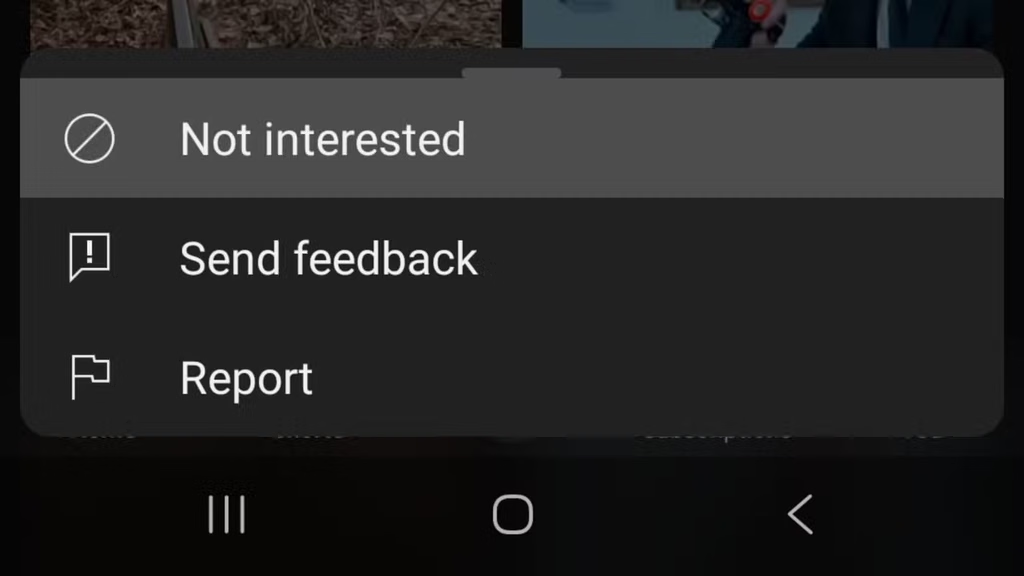
You can also use the three-dot menu in the upper-right corner of an individual Short and select “Not Interested.” This gives YouTube feedback that you don’t want to see that type of content and may help reduce similar Shorts recommendations in your feed.
Once selected, the video will be removed from your feed. You may notice fewer Shorts for a while, although the Shorts section can appear again later as YouTube continues updating your recommendations.
At the time of writing, these are the main options available for reducing the number of Shorts you see on both the YouTube mobile app and desktop website. If you’re using YouTube in a web browser on your computer, you can follow similar steps to adjust your recommendations.
For better results, you may want to select “Show Fewer Shorts” on your phone and repeat the same process when using YouTube on a desktop computer.
If Shorts begin appearing frequently again, simply repeat these steps. Choose “Show Fewer Shorts” when available and use the “Not Interested” option on individual videos to further reduce unwanted Shorts recommendations.
Use an Older Version of the YouTube App on Your Phone
If you prefer using the YouTube app but want to avoid Shorts entirely, another possible option is to use an older version of the app from before the Shorts feature was introduced.
On an iPhone, installing an older version of an app is generally difficult and, in many cases, may not be possible. Because of this, the other methods in this guide are usually more practical for iPhone users.
Android offers a little more flexibility because older app versions can sometimes be installed manually using APK files. However, this approach may not work reliably with Google’s built-in apps, including YouTube.
If your Android phone originally came with YouTube version 14.12.56 or earlier, you may be able to remove later updates and restore the older version. Since versions released before 14.12.56 did not include Shorts, doing this may remove Shorts from the app.
To try this, open Settings > Apps > YouTube on your Android phone. Tap the three-dot menu in the upper-right corner, then select Uninstall Updates.
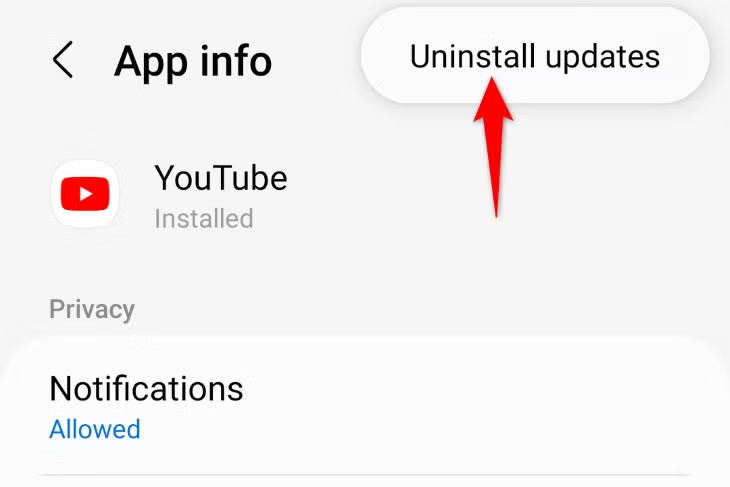
Select “OK” in the prompt.
Once you’ve downgraded the app, open YouTube and check whether the Shorts section is gone. To prevent Shorts from returning, you may also need to disable automatic updates for YouTube so your phone doesn’t reinstall a newer version of the app.
Try a Browser Extension or App to Remove Shorts
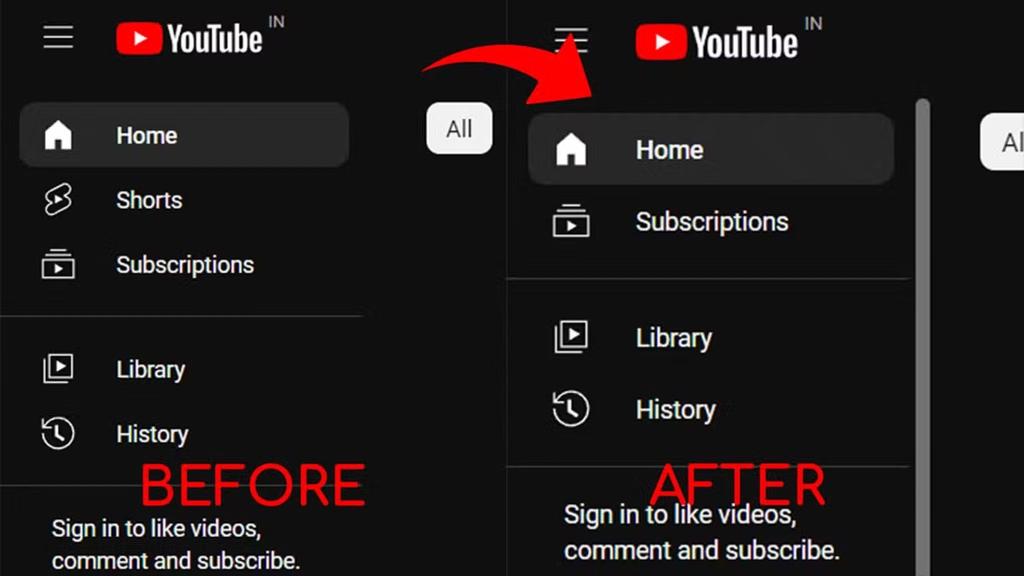
Another option is to use a third-party browser extension or app designed to hide YouTube Shorts. Results can vary, though, because these tools may stop working whenever YouTube changes its website or app.
Chrome users can look for extensions such as Shorts Block or Remove YouTube Shorts in the Chrome Web Store. Android users may also find apps that attempt to block or limit short-form content while browsing YouTube.
Safari users have similar options, including extensions designed to hide Shorts on YouTube. Some may also work on iPhone or iPad, depending on the extension and browser setup.
Keep in mind that third-party tools are not officially supported by YouTube, so their effectiveness may change over time. If one stops working, you may need to try another method or wait for the developer to release an update.
For now, these methods are among the available ways to reduce or remove Shorts from your YouTube experience, allowing you to focus more on regular, long-form videos.
FAQs About How to Disable YouTube Shorts
Can I completely disable YouTube Shorts?
YouTube does not currently offer an official setting to permanently disable Shorts. However, you can reduce how often they appear by using options like “Show Fewer Shorts” and “Not Interested.”
How do I see fewer YouTube Shorts on my phone?
Open the YouTube app, scroll to the Shorts section, tap the three-dot menu, and select “Show Fewer Shorts” when the option is available.
Can I remove YouTube Shorts from the desktop website?
There is no permanent built-in option to remove Shorts from the desktop version of YouTube. You can use feedback options or a compatible browser extension to hide or reduce them.
Does selecting “Not Interested” remove YouTube Shorts permanently?
No. Selecting “Not Interested” helps adjust your recommendations, but Shorts may still appear again in your feed later.
Can browser extensions block YouTube Shorts?
Some third-party browser extensions can hide Shorts from YouTube. Their effectiveness may vary because YouTube frequently updates its website and layout.
Can I use an older version of YouTube to avoid Shorts?
On some Android devices, an older YouTube version may not include Shorts. However, using outdated app versions can cause compatibility, security, and functionality issues.
Will disabling automatic updates keep YouTube Shorts away?
If you are using an older YouTube version without Shorts, disabling automatic updates may prevent the app from updating to a newer version. However, this method is mainly relevant to certain Android devices and is not guaranteed to work permanently.
Conclusion
YouTube does not currently provide a permanent built-in option to disable Shorts, but there are still several ways to reduce how often they appear. Using options such as “Show Fewer Shorts” and “Not Interested” can help improve your recommendations and make Shorts less visible in your feed.
You can also try browser extensions or, on some Android devices, use an older version of the YouTube app. Keep in mind that third-party tools and older app versions may not always work reliably, so the most practical approach is usually to combine YouTube’s available feedback options with other methods that best suit your device.
