



If you have a PDF document, such as a bank statement or financial report, you can import its data directly into Microsoft Excel. Excel includes a built-in feature that can automatically detect and convert information from a PDF into a usable spreadsheet format.
This feature saves you from having to use a separate PDF-to-Excel converter. It also allows you to select only the specific tables or data you want to import instead of bringing in the entire document. The process is simple and usually takes only a few steps.
Note: This PDF import feature was introduced in August 2020 and is available to Microsoft 365 subscribers.
Connect a PDF File to Excel
Start by opening the Excel worksheet where you want to bring in the PDF data. Next, select the Data tab from the ribbon. Click Get Data, hover over From File, and then choose From PDF from the menu.

Locate your file in the browse window, select it, and click “Import.”
Next, the Navigator pane will appear. On the left, you’ll see a list of tables and pages detected in the PDF. You can use the search box at the top to find a specific item, or select any table or page to view its preview on the right.
When you see the item you want to import, click “Load” at the bottom of the window.

After importing the PDF data, it will appear in your worksheet, along with the Queries & Connections pane. From there, you can review or modify the connected data as needed. We’ll cover these options in more detail below.

Adjust the Load Settings
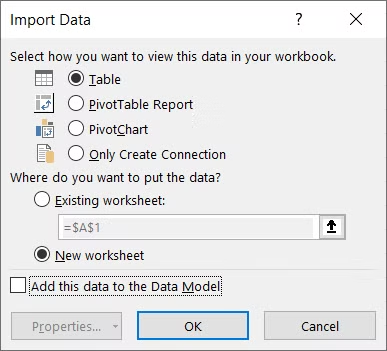
If you want to import the data in a particular format, such as a PivotTable, or place it in a new worksheet, click the drop-down arrow next to Load and select Load To. From there, you can choose how and where the imported data should appear in Excel.

Then choose your options in the Import Data window and click “OK.”
Transform the Data with Power Query
You can also edit or organize the PDF data before importing it into Excel by using the Power Query Editor. In the Navigator window, select the table or page you want to use, then click Transform Data at the bottom instead of choosing Load.
This opens the selected data in Power Query, where you can clean, filter, or adjust it before adding it to your worksheet.

This opens the Power Query Editor, where you can make several changes to your data before loading it into Excel. For example, you can select or add columns, switch rows and columns, manage parameters, and adjust the data format to suit your needs.

Adjust the Connected Data
If you need to make changes to the imported data, you can manage it from the Queries & Connections pane. From there, you can edit the query in Power Query Editor, create a duplicate, merge queries, add a reference, or remove the connected data.
The Queries & Connections pane usually appears automatically after importing data from a PDF. If you close it, you can open it again by going to the Data tab and selecting Queries & Connections from the ribbon.

Hover your cursor over the connected data to display a small options window. From there, you can choose actions such as View in Worksheet, Edit, or Delete. Clicking the three-dot menu reveals additional options, including Duplicate, Reference, and Merge.

You can continue working with the imported data in Excel just like any other worksheet content. If the data is formatted as a table, you can sort or filter it, change the table style, adjust fonts, and apply other formatting options as needed.
Related: How to Create and Use a Table in Microsoft Excel
Importing PDF data directly into Excel can be useful when the information you need to review or analyze is stored in a PDF document. Instead of manually copying the content, you can bring the relevant data into your worksheet and work with it more efficiently.
You can also do the process in reverse by saving an Excel worksheet as a PDF whenever you need a shareable or print-friendly version of your spreadsheet.
Frequently Asked Questions
Can I import data directly from a PDF into Microsoft Excel?
Yes. Excel includes a built-in feature that allows you to import tables and structured data directly from a PDF file.
Where is the PDF import option in Excel?
Go to the Data tab, click Get Data, select From File, and then choose From PDF.
Can I select specific tables from a PDF?
Yes. The Navigator window shows the tables and pages found in the PDF, so you can choose only the data you want to import.
Can I edit PDF data before importing it into Excel?
Yes. Click Transform Data in the Navigator window to open the information in Power Query Editor, where you can clean, filter, or reorganize it.
Can I load PDF data into a PivotTable?
Yes. Choose Load To instead of the standard Load option, then select PivotTable Report as the destination.
Why is Excel not detecting data from my PDF?
Excel may have trouble detecting data if the PDF contains scanned images, complicated layouts, or poorly formatted tables. In such cases, you may need to use OCR or make manual adjustments.
Can I refresh imported PDF data in Excel?
Yes. If the PDF data is connected through a query, you can refresh it from the Queries & Connections pane to update the worksheet.
Conclusion
Importing data from a PDF into Microsoft Excel is a convenient way to work with information without copying it manually. Using Excel’s Get Data feature, you can select a PDF, preview available tables or pages, and load the required information directly into your worksheet.
For more control, Excel also lets you transform the data with Power Query, choose different load options, and manage imported information through Queries & Connections. These tools make it easier to organize, clean, and analyze PDF data within Excel.
