



You can save important places for quicker and easier navigation. If you move or a location changes, make sure to update the saved address in the app.
Keeping your saved locations accurate helps provide better directions and reduces the risk of being routed to the wrong destination.
Note: You only need to update your home or work address on one device. Google will sync the change across your other devices automatically.
Change the Home Address in Google Maps on Mobile
On an iPhone, iPad, or Android device, you can update your home address directly in the Google Maps app.
Open Google Maps on your phone or tablet, then tap Saved at the bottom of the screen.
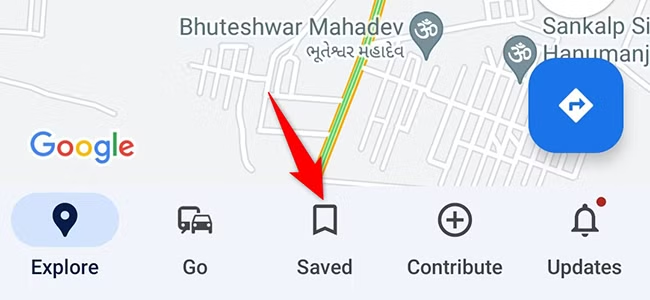
On the “Saved” screen, scroll to the bottom. There, in the “Your Lists” section, tap “Labeled.”

The “Labeled” screen shows your labeled places. Tap the “Home” label.
Tip: If you want to update your work address instead, choose the Work label and enter the new address.

You’ll see the screen for setting your home location. If an old address is already saved, remove it first, then enter your new address.
You can also choose the map option and drag the location marker to the exact spot you want to save.

When that is done, at the bottom of the screen, tap “Save.”
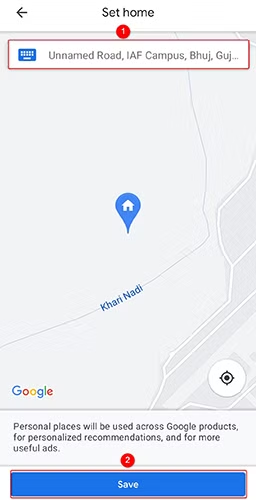
And that’s it. Google Maps now has your new home address, and it will use it the next time you need directions to and from your home.
Change Your Home Location on a Desktop Computer
On a Windows, Mac, Linux, or Chromebook computer, you can update your saved home address using Google Maps in a web browser.
Open your preferred browser, go to Google Maps, and sign in to your Google account if needed. Then click the menu icon in the top-left corner of the page.
Tip: If you haven’t set a Home address yet, type Home into the Google Maps search box and press Enter. Then click Add in the pop-up to save your home location.

Click “Saved” in the menu.

Click the three-dot menu icon next to “Home,” then select “Remove Address.”

Click the three-dot menu icon again, and select “Set Your Home Address” this time.

Type your new home address and click “Save.”
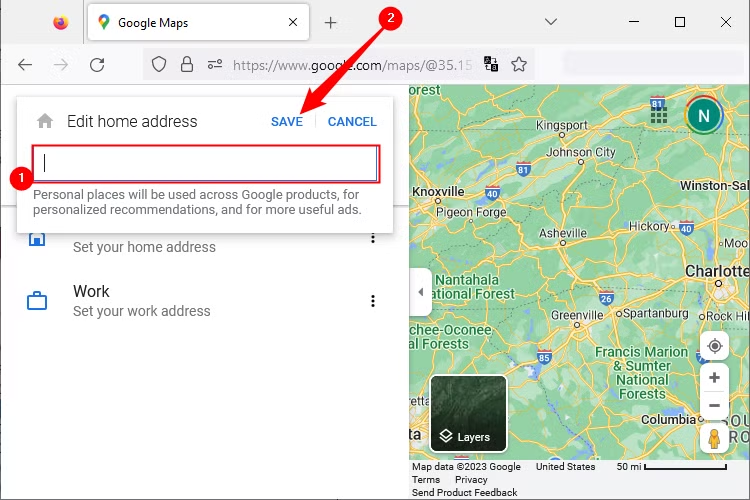
And you’re all set. You have successfully updated your home address in Google Maps.
In addition to your home address, you can save other frequently visited or important locations in Google Maps. This makes them easier to find later and can help you start navigation more quickly.
Frequently Asked Questions:
How do I change my home address on Google Maps?
Open Google Maps, go to your saved or labeled places, select Home, and enter your new address. You can also adjust the location manually on the map if needed.
Can I change my home address on Google Maps from my phone?
Yes. On Android, iPhone, or iPad, open the Google Maps app, go to Saved, find the Home label, and update the address.
Can I change my home address on Google Maps from a computer?
Yes. Open Google Maps in a web browser, sign in to your account, find your saved home location, and edit it.
Will my new home address sync across devices?
Yes. If you are signed in to the same Google account, changes to your home address should sync across your other devices.
Can I change my work address the same way?
Yes. The process is similar. Select the Work label instead of Home and enter the new address.
What if Google Maps places my home in the wrong spot?
You can use the map option to move the location marker to the correct place before saving the address.
Can I save other important places besides Home and Work?
Yes. Google Maps lets you save additional locations so you can find them more easily and start navigation to them faster.
Conclusion:
Changing your home address in Google Maps is quick and helps keep directions, travel times, and saved locations accurate. You can update the address from either the mobile app or a desktop browser, and the change should sync across devices connected to the same Google account.
It is also a good idea to review your saved Home and Work locations whenever you move so Google Maps can continue giving you reliable navigation.
