


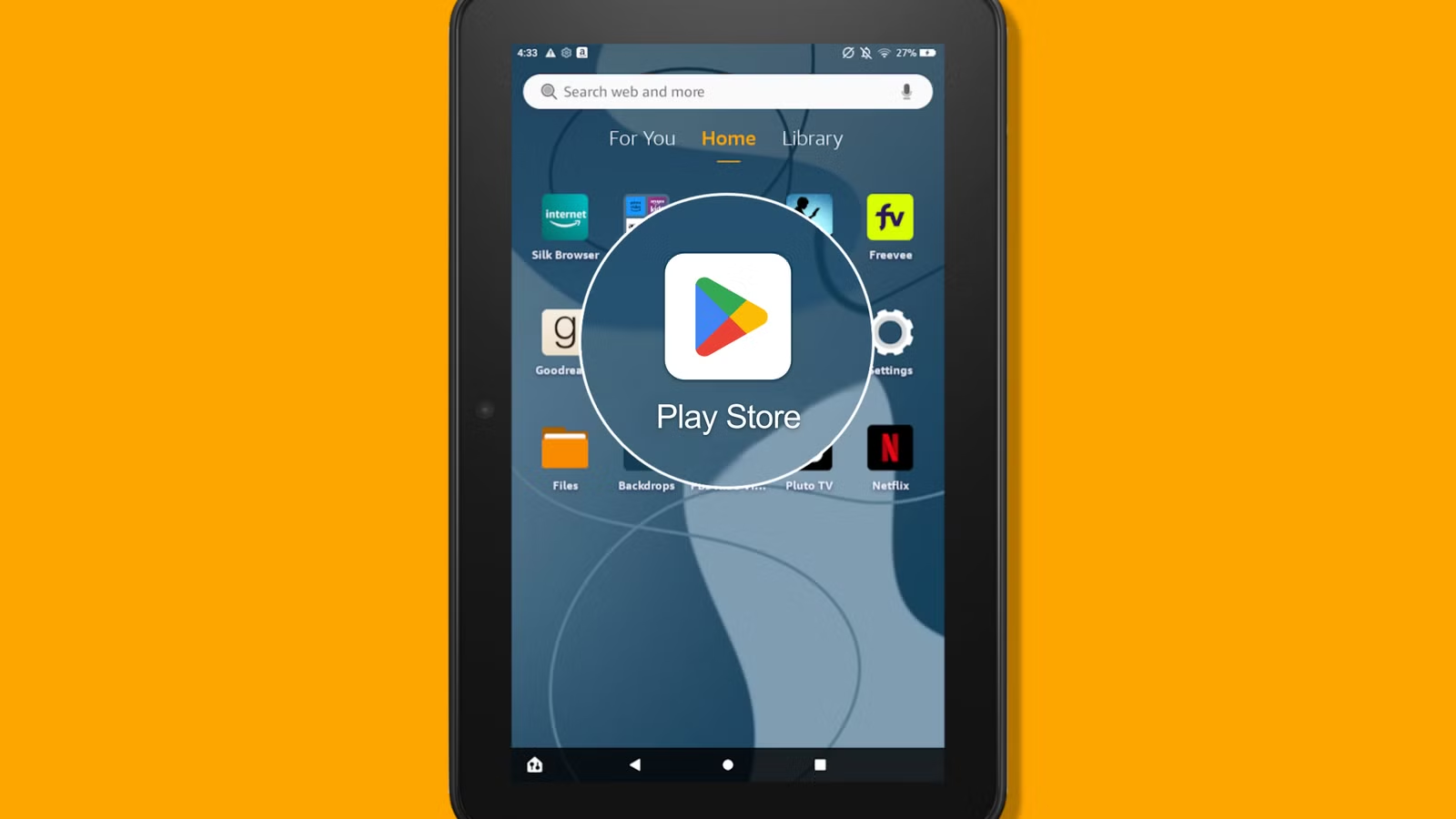
These tablets come with their own built-in app store, but their operating system is based on a modified version of a mobile platform. Because of this, you can install an additional app store to access a much wider range of apps and games.
The setup is fairly simple and does not require advanced system modifications or complicated computer tools. You only need to download and install a few necessary files directly on the tablet. Once everything is set up, you can use the new app store much like you would on a standard mobile device.
Updated: September 12, 2026
The instructions below have been reviewed for current Fire tablet models and Fire OS versions. Compatibility may vary depending on your device model and software version.
Warning: If your Fire tablet has a memory card inserted, remove it before starting the installation. Leaving it in place could put some stored data at risk. You can safely reinsert the card once the setup is complete.
Download the Play Store Files
Before you begin, make sure your Fire tablet was released in 2014 or later. Older Kindle Fire models may not support this process because the required Apps From Unknown Sources setting may be unavailable or work differently.
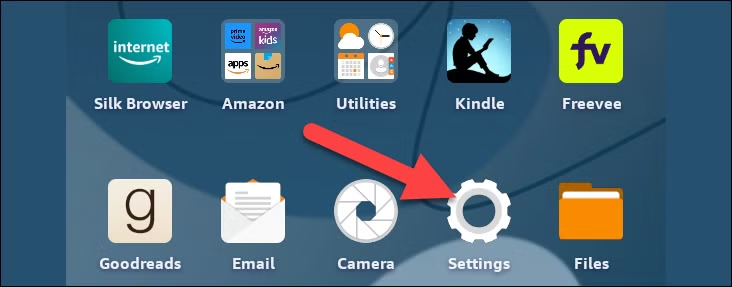
To get started, open the Settings app from the Home screen.
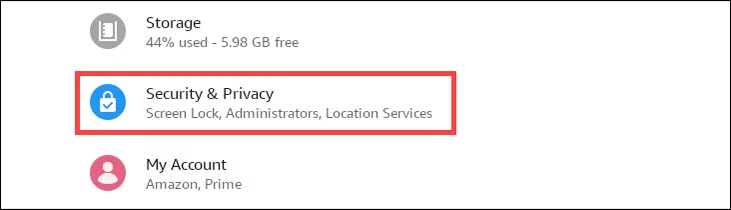
Now go to “Security & Privacy.”
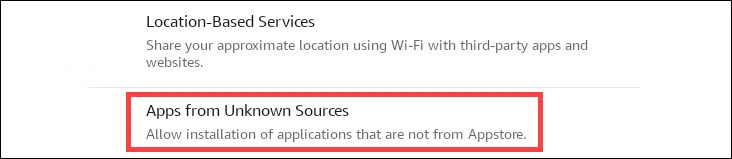
Select “Apps From Unknown Sources.”
Find Silk Browser, then turn on Allow From This Source. This gives the browser permission to install apps from outside the Amazon Appstore.
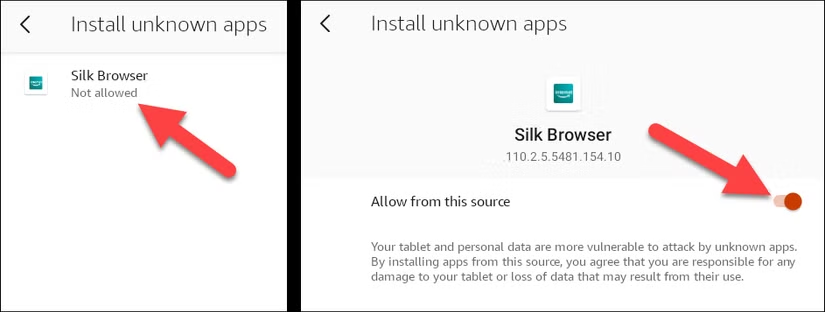
Once that setting is enabled, you can begin downloading the files needed for Google Play. You’ll need four APK files, and the correct versions depend on your specific Fire tablet model and Fire OS version.
To check your tablet model, go to Settings > Device Options > About Fire Tablet. Your model name will appear under Device Model.
To find your Fire OS version, go to Settings > Device Options > System Updates.
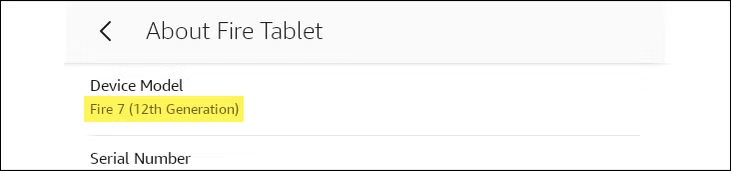
With your Fire tablet model identified, you can now download the correct APK files from the tables below. Copy each link and open it in the Silk Browser on your Fire tablet.
At this stage, only download the files—do not open or install them yet.
Warning: APKMirror is generally considered a reliable source for APK files, but the site may display ads that look similar to download buttons. Make sure you select the genuine Download APK button, which should show the file size and match the app’s icon color. You should also see a Verified safe to install message near the correct download option.
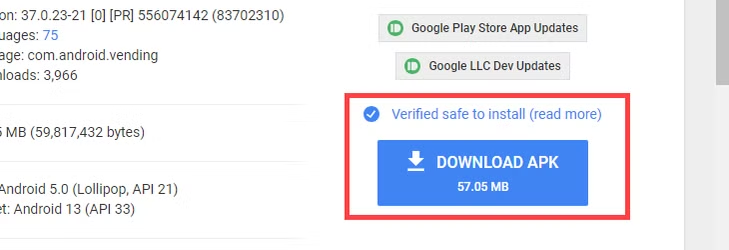
Google Account Manager
Note: If you see a message saying that a newer version is available, you can ignore it and continue with the version specified in this guide.
Google Account Manager
Use the Google Account Manager version that matches your Fire tablet model.
| Fire Tablet Model | Google Account Manager Version |
|---|---|
| Fire Max 11 (13th Gen) | Google Account Manager v7.1.2 |
| Fire HD 10 (9th Gen and newer) | Google Account Manager v7.1.2 |
| Fire HD 8 (8th, 10th, and 12th Gen) | Google Account Manager v7.1.2 |
| Fire 7 (8th, 9th, and 12th Gen) | Google Account Manager v7.1.2 |
| Fire HD 10 (7th Gen and older) | Google Account Manager v5.1 |
| Fire HD 8 (7th Gen and older) | Google Account Manager v5.1 |
| Fire 7 (7th Gen and older) | Google Account Manager v5.1 |
| Fire HD 6 | Google Account Manager v5.1 |
| Fire HDX 8.9 | Google Account Manager v5.1 |
Download the version that matches your device, but do not install it yet. Wait until all required APK files have been downloaded.
Google Services Framework
Choose the Google Services Framework version that matches your Fire tablet model and Fire OS version.
| Fire Tablet Model | Required Version |
|---|---|
| Fire Max 11 (13th Gen) | Google Services Framework v9-4832352 |
| Fire HD 10 (9th Gen, 11th Gen) | Google Services Framework v9-4832352 |
| Fire HD 8 (10th Gen, 12th Gen) | Google Services Framework v9-4832352 |
| Fire 7 (9th Gen) on Fire OS 7 | Google Services Framework v9-4832352 |
| Fire HD 8 (8th Gen) on Fire OS 7 | Google Services Framework v9-4832352 |
| Fire 7 (12th Gen) on Fire OS 8 | Google Services Framework v10-6494331 |
| Fire 7 (9th Gen) on Fire OS 6 | Google Services Framework v7.1.2 |
| Fire HD 8 (8th Gen) on Fire OS 6 | Google Services Framework v7.1.2 |
| Fire HD 10 (7th Gen and older) | Google Services Framework v5.1 |
| Fire HD 8 (7th Gen and older) | Google Services Framework v5.1 |
| Fire 7 (7th Gen and older) | Google Services Framework v5.1 |
| Fire HD 6 | Google Services Framework v5.1 |
| Fire HDX 8.9 | Google Services Framework v5.1 |
Download the version that matches your device and software version, but do not install it yet. Wait until all required APK files have been downloaded.
Google Play Services
Choose the Google Play Services version that matches your Fire tablet model and Android base version.
| Fire Tablet Model | Required Google Play Services Version |
|---|---|
| Fire Max 11 (13th Gen) | 64-bit ARM, nodpi, Android 11+ |
| Fire 7 (12th Gen) | 64-bit ARM, nodpi, Android 11+ |
| Fire 7 (9th Gen) | 32-bit ARM, nodpi, Android 6.0+ |
| Fire HD 8 (10th Gen, 12th Gen) | 64-bit ARM, nodpi, Android 9.0+ |
| Fire HD 10 (9th Gen, 11th Gen) | 64-bit ARM, nodpi, Android 6.0+ |
| Fire HD 8 (8th Gen) | 64-bit ARM, nodpi, Android 6.0+ |
| Fire HD 10 (7th Gen and older) | 32-bit ARM, nodpi, Android 5.0+ |
| Fire HD 8 (7th Gen and older) | 32-bit ARM, nodpi, Android 5.0+ |
| Fire 7 (7th Gen and older) | 32-bit ARM, nodpi, Android 5.0+ |
| Fire HD 6 | 32-bit ARM, nodpi, Android 5.0+ |
| Fire HDX 8.9 | 32-bit ARM, nodpi, Android 5.0+ |
Download the version that matches your device, but do not install it yet. Keep it with the other APK files until all required downloads are complete.
Note: On the download page for your device, choose the latest stable APK version. Avoid versions labeled Beta and do not select an APK Bundle.
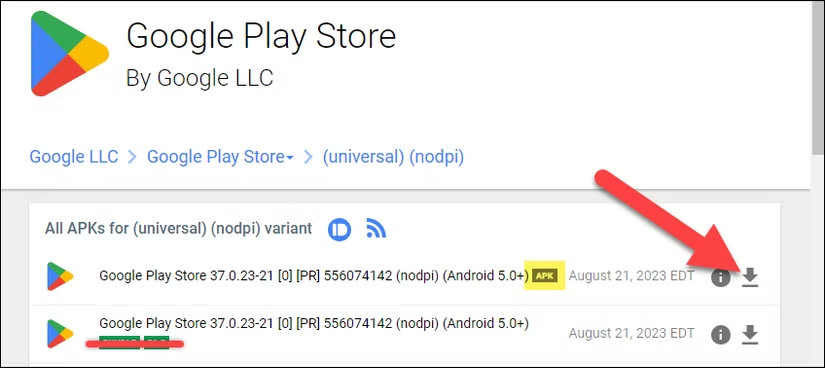
Google Play Store
Note: Make sure you download an APK file rather than an APK Bundle.
For all supported Fire tablet models, download the latest compatible Google Play Store APK for Android 10 or later, using the universal, nodpi version where available.
At this stage, only download the file. Do not install it until all required APK files are ready.
Install the Play Store
Once all four APK files have been downloaded to your Amazon Fire tablet, you can begin installing them one at a time.
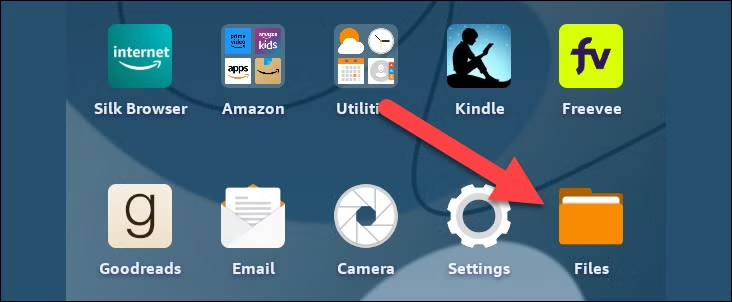
Start by opening the Files app from the home screen.
Select “Downloads” from the side menu and switch to the list view for the files. You should see the four files we just downloaded.
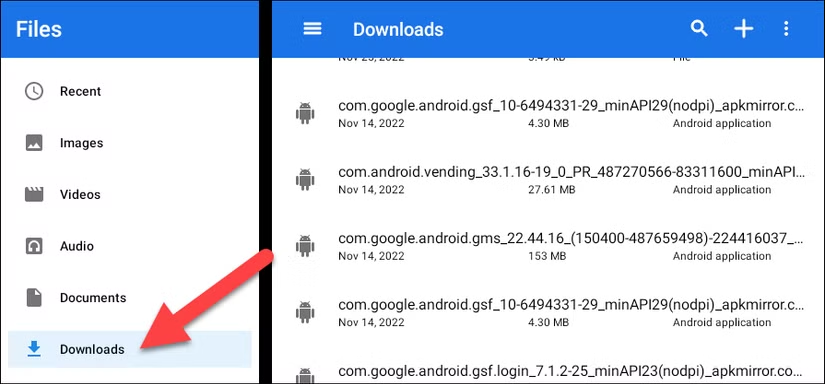
It is important to install the four APK files in the correct order. For each file, tap it, choose Continue, then tap Install. When the installation finishes, select Done.
Do not open the Google Play Store yet.
Install the files in this order:
com.google.android.gsf.logincom.google.android.gsfcom.google.android.gmscom.android.vending
The full file names on your tablet may be longer, but they should begin with the names shown above.
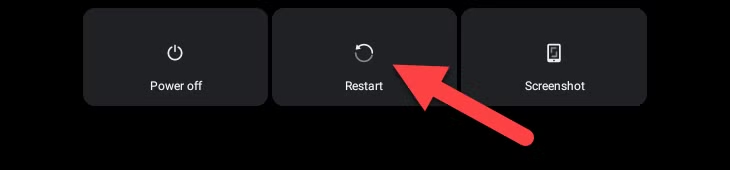
After all four APKs are installed, restart your Fire tablet. Press and hold the Power button, then select Restart.
If Your Newer Fire Tablet Has Problems
If you’re using a Fire 7 (12th Gen) or another newer Fire tablet running Fire OS 8, you may need to grant additional permissions before the Google Play Store works correctly.
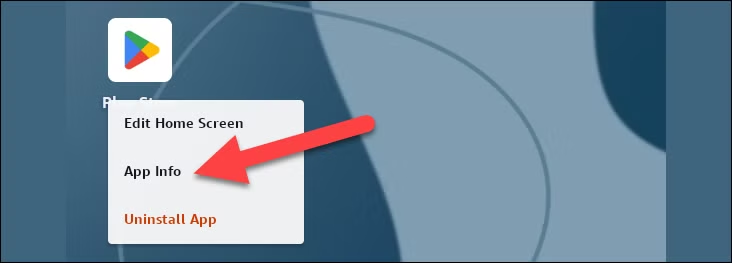
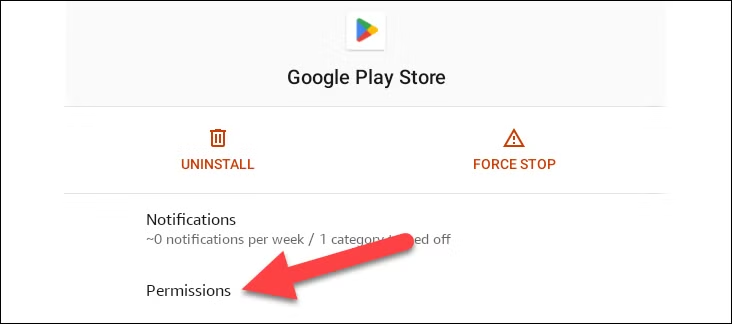
Press and hold the Google Play Store icon, then select App Info to open its settings.
If Your Newer Fire Tablet Has Problems
If you’re using a Fire 7 (12th Gen) or another newer Fire tablet running Fire OS 8, you may need to grant additional permissions before the Google Play Store works correctly.
Press and hold the Google Play Store icon, then select App Info to open its settings.
From the App Info page, select “Permissions.”
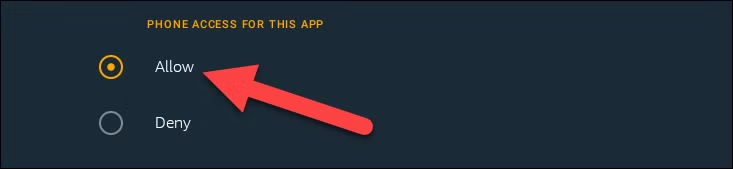
Select both “Phone” and “SMS” and switch them to “Allow.” You can now proceed with the rest of the tutorial.
Sign In to the Play Store
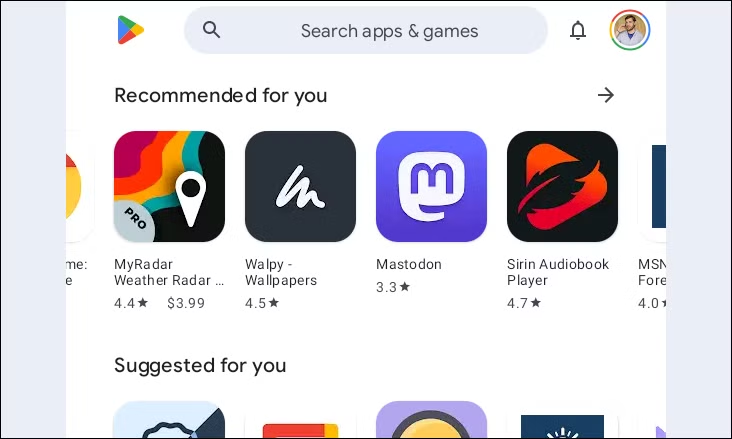
After completing the setup, open the Google Play Store from the home screen and sign in with your Google account.
Once you’re signed in, you can browse and install apps just like you would on a standard Android device. This gives you access to many apps and games that may not be available through the Amazon Appstore.
Warning: A future Fire OS update could cause the Google Play Store to stop working properly. If that happens, try repeating the installation process and check whether newer compatible APK files are available.
If the problem continues, you may need to reset the Fire tablet and set it up again from scratch.
You may run into a few issues when using the Google Play Store for the first time. This is normal because the Play Store and Google Play Services may need to update automatically in the background.
Give the tablet a few minutes to finish these updates. In some cases, the process can take up to about 10 minutes before everything works properly.
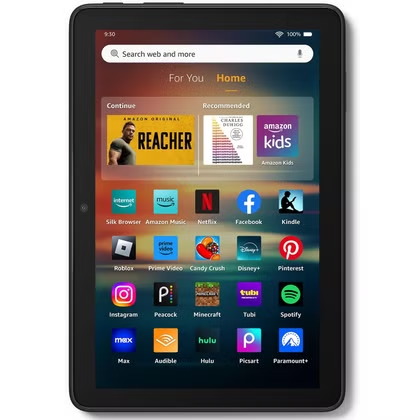
Amazon Fire HD 8 (2024)
The Amazon Fire HD 8 (2024) is a solid upgrade for anyone looking for an affordable and compact tablet. With a faster processor, more RAM, and increased storage options, it delivers smoother performance across everyday tasks.
Despite the internal improvements, it keeps the same portable form factor, making it a practical choice for streaming, reading, browsing, and casual app use.
Frequently Asked Questions:
Can you install the Google Play Store on an Amazon Fire tablet?
Yes. On many Fire tablets, you can install the Google Play Store manually by downloading and installing the required Google APK files in the correct order.
Do you need to root a Fire tablet to install Google Play?
No. The usual method does not require rooting the tablet or using advanced system modifications.
Which files are required to install the Google Play Store?
You typically need four APK files: Google Account Manager, Google Services Framework, Google Play Services, and the Google Play Store.
Does the APK version matter for different Fire tablets?
Yes. The correct APK versions can depend on your Fire tablet model, generation, processor architecture, and Fire OS version.
Why should the APK files be installed in a specific order?
The installation order matters because each Google component depends on the previous one. Installing them out of order can cause setup errors or prevent the Play Store from working properly.
What should I do if the Play Store does not work right away?
Give the tablet several minutes after setup because Google Play Services and the Play Store may update in the background. Restarting the tablet can also help.
Can a Fire OS update break the Google Play Store?
Yes. A future Fire OS update may cause compatibility problems. If that happens, you may need to reinstall the required APK files using newer compatible versions.
Conclusion:
Installing the Google Play Store on an Amazon Fire tablet can give you access to a much wider selection of apps and games than the Amazon Appstore alone. The process does not require rooting, but it is important to download the correct APK files for your tablet model and install them in the proper order.
After installation, give Google Play Services and the Play Store time to update in the background. If you run into problems later, especially after a Fire OS update, reinstalling compatible APK versions may help restore functionality.
