


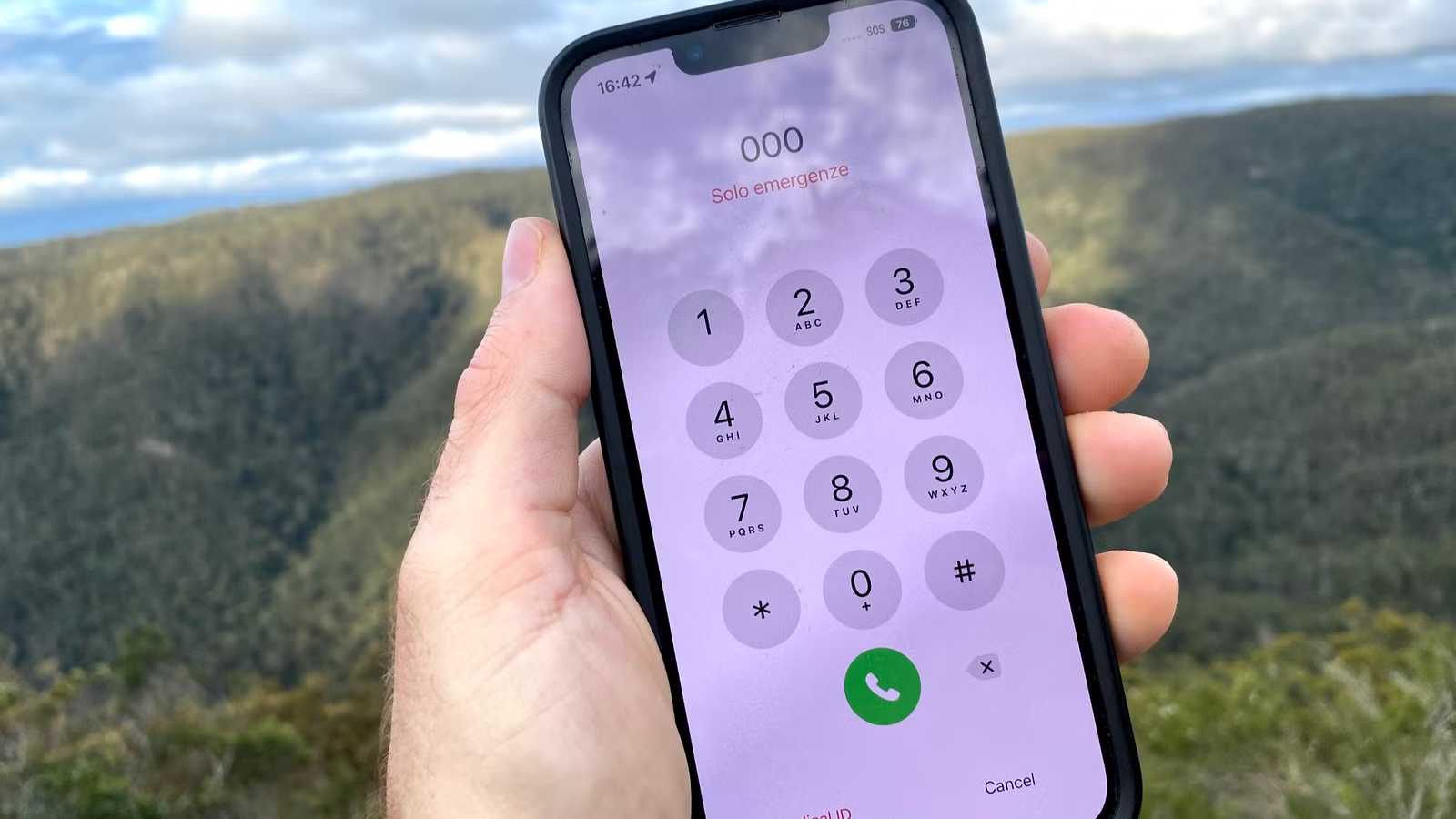
If you see “SOS Only” at the top of your iPhone screen, it means your phone is not connected to your regular cellular network. As a result, you may be unable to make normal calls, send text messages, or use mobile data.
Here’s what SOS Only means, why it appears, and what you can do to restore your cellular connection.
What Does “SOS Only” Mean on iPhone?
The “SOS Only” or “SOS” message appears in the status area at the top of your iPhone when it can’t connect to your normal cellular network.
When this happens, you can only make emergency calls, such as 911 in the U.S., 112 in many parts of Europe, 999 in the U.K., or 000 in Australia.
Tip: If you’re traveling and don’t know the local emergency number, press and hold the Side button and either Volume button until the Emergency SOS slider appears. You can then use it to place an emergency call.
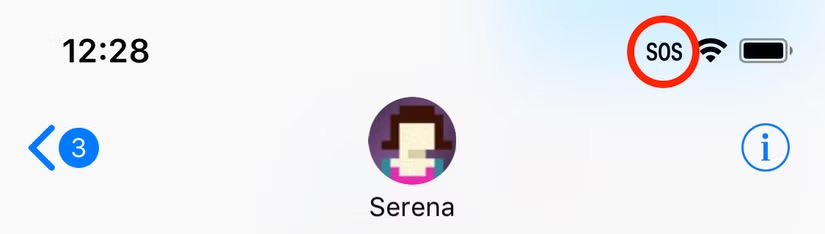
When your iPhone shows “SOS Only,” regular calls, text messages, and cellular data will not work. Your phone is limited to contacting emergency services, such as police, fire, ambulance, coast guard, or rescue services available in your country.
Emergency safety features can still function. For example, Crash Detection on supported iPhones and Fall Detection on compatible Apple Watch models can continue to contact emergency services even while the SOS Only warning is displayed.
Why Does My Phone Say “SOS Only”?
The “SOS Only” message usually appears when your iPhone cannot connect to your normal carrier but can still detect another network that supports emergency calls.
For example, if your carrier has no coverage in your current location but another network does, your iPhone may show SOS Only. This allows you to contact emergency services even though regular calls, texts, and mobile data are unavailable.
You may also see this message while traveling, especially in areas where your carrier has limited or no roaming coverage.
“SOS Only” May Be Related to Carrier Outages
The “SOS Only” message can also appear when your carrier is experiencing a service outage. In this situation, your iPhone may be unable to connect to your usual network but can still use another carrier’s network for emergency calls.
If you normally have good coverage in your area and suddenly see SOS Only, a network problem may be the cause.
When you have access to Wi-Fi or another internet connection, check whether your carrier has reported an outage. Large outages may be widely reported, while smaller issues can affect only a few nearby cell towers or a limited area.
How to Fix “SOS Only” on an iPhone
Since “SOS Only” is a failsafe feature rather than a problem, the only “fix” is to move within range of your carrier’s network. If you see the message appear a lot, you might want to consider making use of your iPhone’s dual-SIM capabilities and subscribing to another mobile plan.
Sometimes, an iPhone can remain stuck on the “SOS Only” message even in an area where you normally have cellular coverage.
To refresh the connection, open Control Center by swiping down from the top-right corner of the screen. Turn Airplane Mode on, wait a few seconds, and then turn it off again. This can help your iPhone reconnect to your carrier’s network.
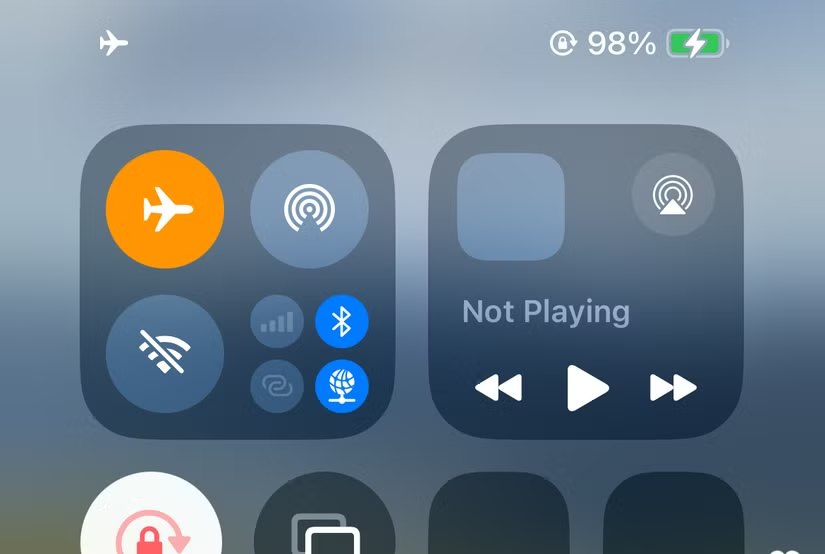
If Airplane Mode does not fix the issue, try restarting your iPhone. A restart can refresh the device’s network connection and help it reconnect to your carrier.
Wi-Fi Calling Should Work During an Outage
Instead of using the cellular network, Wi-Fi calling uses a standard internet connection to place calls with your carrier. Most carriers support Wi-Fi calling as long as you’re connected to a reliable wireless network. You can enable Wi-Fi calling on your iPhone under Settings > Phone > Wi-Fi Calling.

If you don’t see the Wi-Fi Calling option, your carrier may not support the feature. Once Wi-Fi Calling is enabled, your iPhone should display a Wi-Fi Calling indicator at the top of the screen when it is using a Wi-Fi connection for calls.
Your iPhone May Also Support Emergency SOS via Satellite
Apple introduced Emergency SOS via Satellite with the iPhone 14 lineup. The feature is available on compatible iPhone models released from 2022 onward, including newer iPhone generations.
Emergency SOS via Satellite is designed for situations where you have no cellular or Wi-Fi coverage at all. If you try to make an emergency call and your iPhone cannot detect a network, it may offer the option to use Emergency Text via Satellite instead.
Your iPhone will then guide you through connecting to a satellite so you can contact emergency services even when you are completely outside normal cellular coverage.
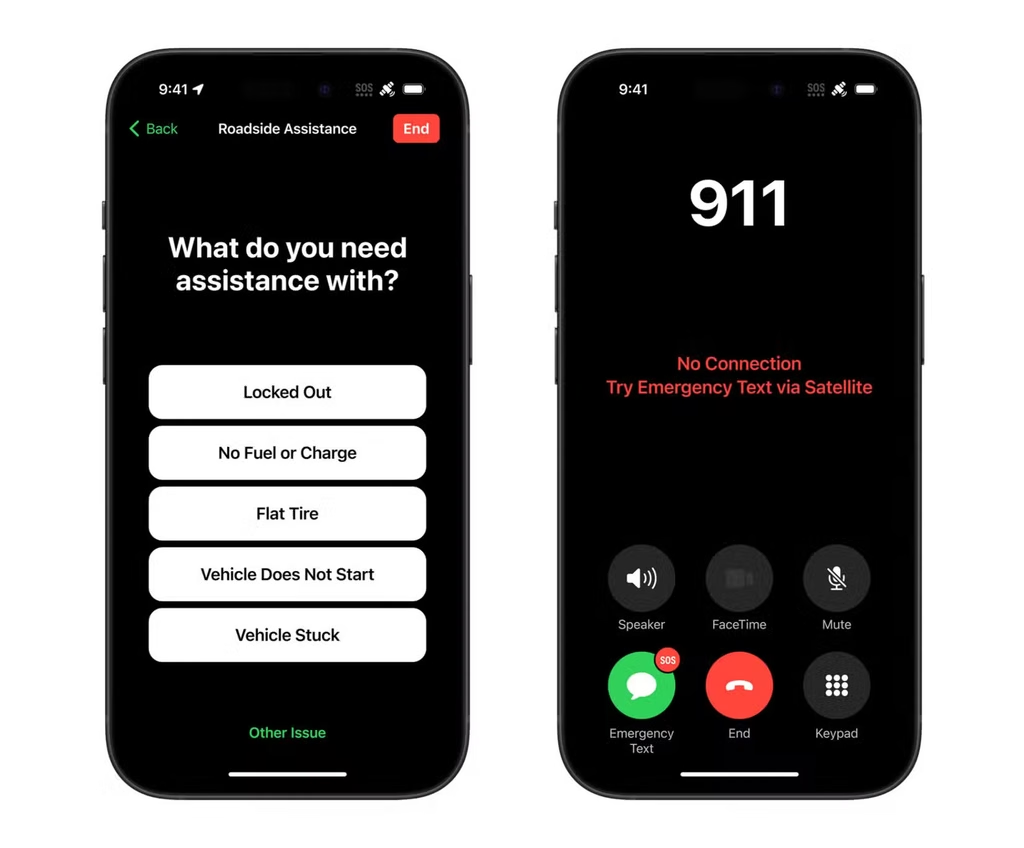
To use Emergency SOS via Satellite, follow the on-screen instructions and move your iPhone as directed so it can establish a clear connection with a satellite.
The feature is available in a growing number of supported countries and regions, including the U.S., Canada, Australia, the U.K., Japan, and several European countries. Availability can vary by location, carrier, and iPhone model.
Check Your Carrier Coverage:
If you frequently see the “SOS” message on your iPhone, your carrier may have weak coverage in your area. Check your provider’s coverage map and compare it with other networks available in your location.
If another carrier offers better coverage where you live, work, or travel frequently, switching to a different network or mobile plan may help prevent the issue.
Frequently Asked Questions:
What does “SOS Only” mean on an iPhone?
“SOS Only” means your iPhone cannot connect to your normal cellular network, but it can still access another network for emergency calls.
Why is my iPhone stuck on SOS Only?
This can happen because of weak carrier coverage, a network outage, roaming issues, SIM or eSIM problems, or a temporary connection glitch.
How do I fix SOS Only on my iPhone?
Try turning Airplane Mode on and off, restarting your iPhone, checking for a carrier outage, and making sure your cellular settings are correct.
Can Wi-Fi Calling work when my iPhone says SOS Only?
Yes, if your carrier supports Wi-Fi Calling and the feature is enabled, you may still be able to make and receive calls over a Wi-Fi connection.
Will restarting my iPhone fix SOS Only?
It can. Restarting forces your iPhone to reconnect to nearby cellular networks and may resolve a temporary network issue.
Can SOS Only be caused by my carrier?
Yes. If your carrier is experiencing an outage or has poor coverage in your area, your iPhone may display SOS Only.
What should I do if my iPhone keeps showing SOS Only?
If the issue happens often, check your carrier’s coverage in your area, update your iPhone and carrier settings, and contact your mobile provider if the problem continues.
Conclusion:
Seeing “SOS Only” on your iPhone usually means the device cannot connect to your regular cellular network. In many cases, the issue can be fixed by toggling Airplane Mode, restarting the iPhone, checking for carrier outages, or using Wi-Fi Calling when available.
If the message appears frequently, weak carrier coverage or a SIM, eSIM, or network issue may be the cause. Checking your carrier’s coverage and contacting your provider can help if the problem continues.
