



Where Do Screenshots Go on Windows?
The location of your screenshots in Windows 10 and Windows 11 depends on the method you use to capture them. Windows does not save every screenshot to one single folder.
Depending on the screenshot tool or keyboard shortcut you use, the image may be saved automatically, copied to the clipboard, or stored in a specific folder. Fortunately, there are a few common locations you can check.
Where Are Screenshots Saved When You Use Print Screen?
If you press the Print Screen (PrtScn) key, Windows does not usually save the screenshot as a file automatically. Instead, the image is copied to the clipboard, where it remains temporarily until you paste it somewhere.
To save the screenshot, open an image editor such as Paint, paste the image, and then save it as a file.
The same applies when you press Alt + Print Screen to capture only the active window. The screenshot is copied to the clipboard rather than saved directly to a folder.
If You Use Windows + Print Screen
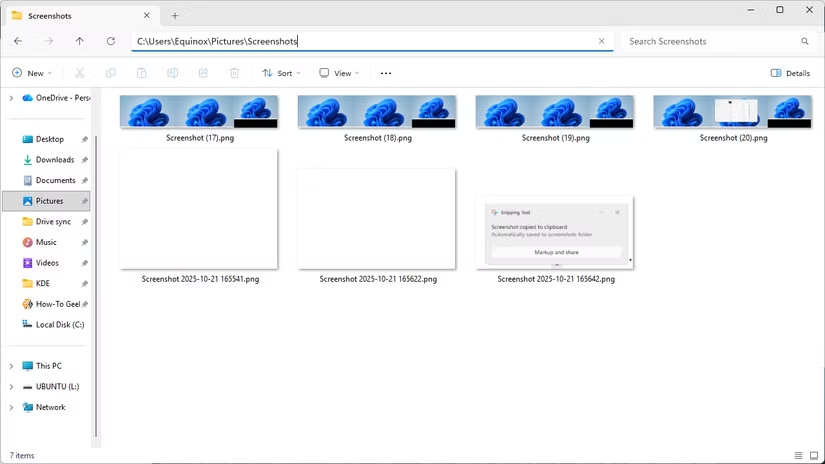
When you press Windows + Print Screen in Windows 10 or Windows 11, the system captures the entire screen and automatically saves the screenshot as a PNG file.
By default, screenshots are usually stored in:
C:\Users\[User Name]\Pictures\Screenshots
Replace [User Name] with the name of your Windows account.
The files are typically named Screenshot (#).png, with the number increasing as you take more screenshots.
Some devices may use similar shortcuts, such as Windows + Fn + Print Screen, Power + Volume Down, or Windows + Volume Down. Screenshots taken with these shortcuts are generally saved in the same Pictures > Screenshots folder.
Note: If you have manually moved the Screenshots folder to a different location through its Properties settings, Windows will save new screenshots in the location you selected instead of the default Pictures > Screenshots folder.
If You Used Snipping Tool to Take a Screenshot
Windows 10 and Windows 11 include the Snipping Tool, which lets you capture full-screen, window, rectangular, or custom screenshots.
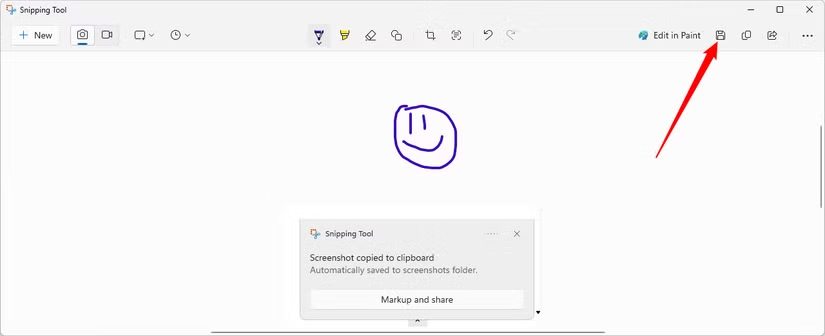
By default, screenshots taken with Snipping Tool may be copied to the clipboard and can also be saved in the Pictures > Screenshots folder, depending on your settings.
After taking a screenshot, you can open it in Snipping Tool to crop, highlight, draw, or make other quick edits. When you choose to save the image manually, you can select any folder you prefer.
If you cannot remember where you saved your last screenshot, try taking another one and choosing Save As. Windows will often open the most recently used save location, which can help you find the previous file.
Your older screenshots may still be stored there. If you do not find them, open File Explorer and check the Documents and Pictures folders under This PC.
These are also common locations where screenshots may have been saved manually.
If You Took a Screenshot with the Game Bar
If you use the Game Bar capture tool by pressing Windows + G, Windows usually saves screenshots in:
C:\Users\[User Name]\Videos\Captures
Replace [User Name] with the name of your Windows account.
To find your captures without opening the folder manually, press Windows + G, open the Capture panel, and select See My Captures.
From the gallery, you can open the folder containing your screenshots and videos in File Explorer. You can also select a capture and choose Open File Location to go directly to the saved file.

You can also change the folder where Game Bar saves screenshots and recordings by editing the Windows Registry.
Open Registry Editor and navigate to:
Computer\HKEY_CURRENT_USER\Software\Microsoft\Windows\CurrentVersion\Explorer\User Shell Folders
Find the following string value:
{EDC0FE71-98D8-4F4A-B920-C8DC133CB165}
Double-click it and replace the existing path with the folder where you want Game Bar captures to be saved.
If the string value is not listed, right-click an empty area, select New > String Value, and name it:
{EDC0FE71-98D8-4F4A-B920-C8DC133CB165}
Then open the new value and enter your preferred save location.

I chose to save my captures on a separate high-capacity hard drive. While a traditional hard drive is slower than an SSD, speed is usually less important when you are mainly storing screenshots and game clips.
For large media files, having more available storage space can be more useful than having the fastest possible drive.
If You Use a Third-Party Screenshot Tool
If you take screenshots in Windows 10 or Windows 11 using a third-party screenshot app, the save location will depend on that app’s settings.
Open the tool’s Settings or Preferences menu to check where screenshots are being stored.
If you are not sure where to look, start by checking the Pictures and Documents folders under This PC in File Explorer, as these are common default save locations.
If You Still Can’t Find Your Screenshots
If you still cannot find your screenshots, try taking a new screenshot and then searching for recently modified files in File Explorer.
Press Windows + E to open File Explorer, then type the following into the search box:
datemodified:today
You can make the search faster by opening the drive or folder where you think the screenshot may have been saved before running the search.
If you know the screenshot’s file format, you can narrow the results further by adding a wildcard and file extension. For example, to search for PNG files modified today, enter:
datemodified:today *.png
This filters out unrelated files and makes it easier to locate the screenshot you are looking for.
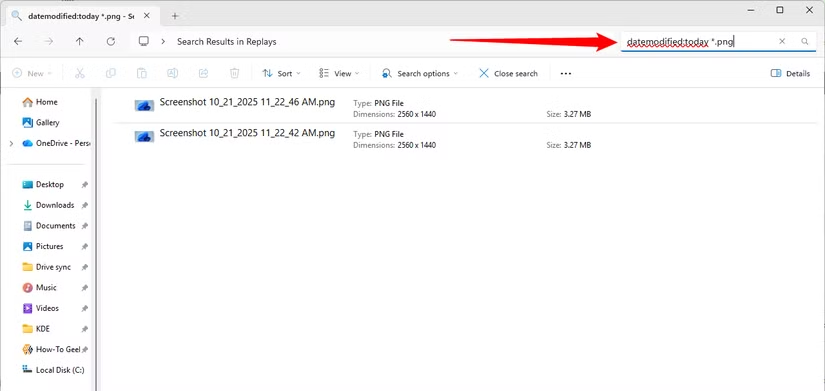
After a few moments, recently created files should begin appearing in the search results.
When you find the screenshot you just took, right-click it and select Open File Location. File Explorer will open the folder where that screenshot is stored, and you may find your other screenshots in the same location.
Frequently Asked Questions:
Where are screenshots saved on Windows 10 and Windows 11?
The save location depends on how you take the screenshot. Some screenshots are saved automatically, while others are copied to the clipboard.
Where do Windows + Print Screen screenshots go?
Screenshots taken with Windows + Print Screen are usually saved in the Pictures > Screenshots folder.
Does the Print Screen key save screenshots automatically?
No. Pressing Print Screen usually copies the screenshot to the clipboard. You need to paste it into an app such as Paint and save it manually.
Where does Snipping Tool save screenshots?
Snipping Tool screenshots may be saved in the Pictures > Screenshots folder or another location you choose when saving the image.
Where are Game Bar screenshots saved?
Game Bar captures are generally stored in the Videos > Captures folder inside your Windows user account.
Can I change where Windows saves screenshots?
Yes. Depending on the screenshot method, you can move the Screenshots folder or change the save location through the app or system settings.
What should I do if I cannot find a screenshot?
Use File Explorer to search for recently modified image files. Searching by date and file type, such as PNG, can make the screenshot easier to locate.
Conclusion:
Where screenshots are saved on Windows 10 and Windows 11 depends on the method you use to capture them. Some screenshots are stored automatically in folders such as Pictures > Screenshots or Videos > Captures, while others are copied to the clipboard and must be saved manually.
If you cannot find a screenshot, checking common folders, reviewing the app’s save settings, or searching for recently modified image files in File Explorer can help you locate it quickly.
